How to turn off ACR tracking on a Samsung TV
The two settings that matter most, where Samsung puts them, and what changes when you turn them off.
If you own a Samsung TV, two settings decide most of what it shares about your viewing. Both are usually switched on during setup with a single “I agree”, and both can be switched off again in a couple of minutes once you know where to look.
The two settings that matter
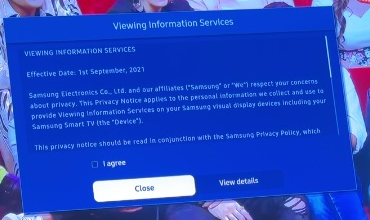
- Viewing Information Services. Samsung’s automatic content recognition. When it’s on, the TV recognizes what’s playing on screen and sends that information back. Samsung’s support page confirms it only runs if you agreed to it.
- Interest-Based Advertisements. Lets what Samsung knows about your viewing shape the ads you see on the TV.
They’re separate consents, so turning off one doesn’t turn off the other.
On recent models (2025)
According to Consumer Reports’ guide for 2025 Samsung TVs:
- Open Settings, then All Settings.
- Go to General & Privacy, then Terms & Privacy.
- Open Viewing Information Services and untick “I agree”.
- Open Interest-Based Advertising and untick it too.
On older models
On older Samsung TVs the same notices usually live under Support, in a section called Terms & Privacy or Terms & Policy. Samsung’s own advertising privacy notice points to Menu › Support › Terms & Policy or Menu › Smart Hub › Terms & Policy for the ad setting.
On our pilot TV, a 2021 AU8000, we found both consents through Support, in the privacy options. Each one opens a long notice with an “I agree” box near the bottom. Untick it, then confirm if the TV asks.
Optional: Samsung TV Plus
Samsung TV Plus is Samsung’s free, ad-supported channel service. If you don’t use it, you can disable it. On our pilot TV that option was in the app’s own options on the home screen; menus vary by model, so it may sit elsewhere on yours.
What changes when you switch these off
Researchers who measured Samsung and LG TVs in 2024 found that after opting out of ACR, the TVs stopped communicating with ACR servers entirely. That’s the main thing you’re after.
What doesn’t change: you’ll still see some ads on the home screen, and the TV will still talk to Samsung for things like software updates and apps. Your picture, apps and accounts stay as they were.
If you can’t find the settings
Menus move between model years and regions, and some TVs bury these screens three or four levels deep. That’s the exact problem our app is built to solve: tell it your model and it shows you where each setting is, then walks you through switching it off. It’s free to check whether your TV is supported.
Sources
- How to Turn Off Smart TV Snooping Features — Consumer Reports, updated October 2025 (menu paths for 2025 models)
- Samsung Smart TV Automatic Content Recognition (ACR) Feature — Samsung support
- Samsung Ads Privacy Notice — Samsung Ads (opt-out path for Interest-Based Advertisements)
- Watching TV with the Second-Party: A First Look at Automatic Content Recognition Tracking in Smart TVs — ACM Internet Measurement Conference, 2024
Keep reading

What we found when we cleaned up our first TV
Twenty-five app packages, two tracking consents, and an ad channel the household didn’t want. Notes from our pilot on a Samsung AU8000.

What your smart TV knows about you
Your TV can recognize what’s on its screen and report it. Here’s how that works, what researchers found, and what you can switch off.