How to stop smart TV tracking
Turn off supported viewing-data consent, then review advertising and app privacy separately. Practical steps for Samsung, LG, Roku and Google TV.
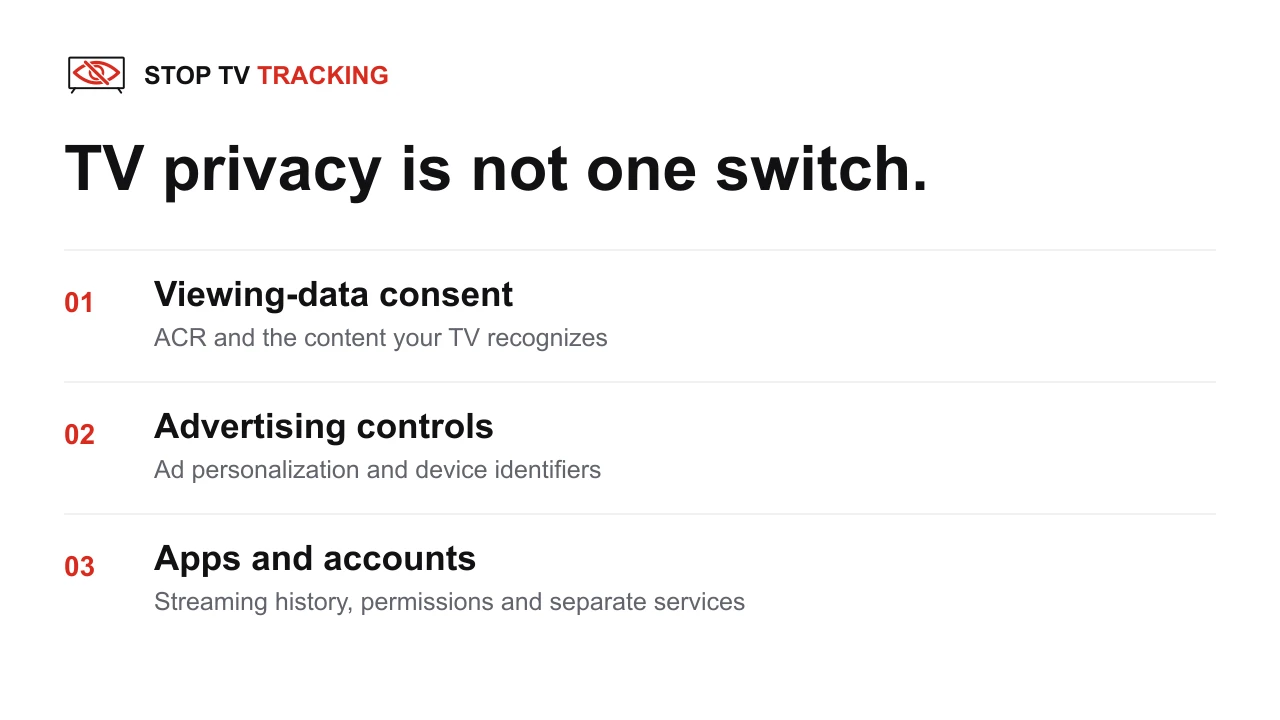
First, identify which device you are changing
Note your TV’s model, software version and region. A streaming stick and the TV it plugs into can have separate privacy controls. A Sony, TCL or Hisense television running Google TV can also have manufacturer-specific consent settings in addition to Google’s controls.
Look up your model’s manual if the names below do not match. Do not infer that an unfamiliar or missing setting is off. For a platform not covered here, use its current manufacturer privacy instructions rather than copying another brand’s menu path.
Samsung: viewing information and ads are separate
Look for Viewing Information Services in the TV’s privacy notices. Samsung describes ACR as optional and consent-based. Review the advertising notice separately, then reopen both to verify the saved choices. Samsung’s ACR explanation.
Our Samsung ACR guide includes menu alternatives, real before/after consent photos and the exact model and firmware from our AU8000 pilot. That is a one-TV record, not a claim that every Samsung behaves identically.
LG: review viewing-information consent and Live Plus
LG documents separate Viewing Information and Interest-Based Cross Device Advertising agreements. Review the optional agreements in your TV’s privacy settings; withdrawing one is not a substitute for reviewing the other. LG’s explanation.
Where a Live Plus control is present, LG’s support guide lists General → System → Additional Settings for webOS21–23, and General → Additional Settings on older layouts. Set Live Plus off if you do not want that feature. These paths are model-dependent. LG’s documented menu variants.
This section is based on LG’s documentation, not a hands-on LG test by our team.
Roku TV: check Smart TV Experience
Roku documents Settings → Privacy → Smart TV Experience. Its current instructions identify an Automatic Content Recognition (ACR) checkbox; press OK to disable it if selected. Review More Ways to Watch separately. Menu labels and feature availability can vary. Roku’s instructions.
Roku says data collected or used while ACR was enabled is retained after you disable it. Opting out and asking a provider to delete historical data are different requests. This section follows Roku’s U.S. support documentation; we have not run a Roku TV test for this guide.
Google TV: deleting an ad ID is not the same as turning off ACR
Google documents Settings → Privacy → Ads → Delete advertising ID. Deleting the ID stops ads based on that identifier; ads can still use other information. Reset advertising ID instead creates a new identifier. Neither option removes all ads. Google’s ad-setting guide.
Also check your television maker’s viewing-data agreement, optional diagnostics, voice settings and each app’s permissions or account history. Android TV layouts can differ from Google TV’s documented path. Google’s data-use explanation describes why these are separate controls.
Check what changed without overstating the result
- Record the baseline. Photograph the current setting and note the model, firmware and date. Leave a setting off if it is already off.
- Change one control at a time. Follow its confirmation step. Avoid factory resets or app removal just to change a consent preference.
- Reopen the control. Confirm the saved state. If useful, restart normally and check again.
- Check the functions you use. Test your usual streaming apps and remote features. Keep a note of any trade-off, such as less personalized recommendations.
- Keep the evidence precise. “Consent unchecked” is a setting observation. “No identified ACR traffic in this test” requires a network measurement. Neither proves every service stopped collecting data.
Use our downloadable TV privacy worksheet to record the results. Recheck after a TV update or setup reset, without assuming an update necessarily changed your choices.
What about ads, streaming apps and an offline TV?
ACR, advertising personalization and visible advertisements are different things. An ad remaining on screen does not prove an ACR consent is on. A clean launcher also does not, by itself, demonstrate that network tracking stopped.
Streaming services have their own accounts and policies. Review them separately. If you use an external player and want to keep the TV itself offline, disconnect its Ethernet and disable or forget its Wi-Fi connections, then verify after restart. Built-in streaming and some connected features will no longer work; the player still has its own data practices. Disconnecting does not erase data already collected.
For the research and limitations behind these distinctions, read does turning off smart TV tracking actually work?
Where our Android app fits
Stop TV Tracking’s free Android app helps review supported settings and app changes, asks for confirmation, and keeps local history. Initial app support focuses on Samsung Tizen and Google/Android TV. The LG and Roku sections above are manual guidance, not claims of app compatibility.
Both the manual guides and the current Android app are free. There are no paid unlocks or subscriptions in this release.
Sources
- Samsung Smart TV ACR Feature — Samsung support. Manufacturer documentation reviewed November 9, 2026.
- Understanding Privacy on LG Smart TVs — LG's explanation of viewing-information and advertising consent.
- LG Live Plus settings — LG support documents paths for webOS21–23 and older layouts; not a universal current-model path.
- Using More Ways to Watch on your Roku TV — Roku support: Smart TV Experience and ACR controls.
- Change ad settings for your Google TV — Google support: deleting versus resetting the advertising ID.
- How Google TV handles your data — Google support: separate device, app and service data uses.
Keep reading
Does turning off smart TV tracking actually work?
What the latest ACR research can—and cannot—prove, which privacy controls matter, and how to check your own TV without mistaking an off switch for a privacy guarantee.
What we found when we cleaned up our first TV
Twenty-five app packages, two tracking consents, and an ad channel the household didn’t want. Notes from our pilot on a Samsung AU8000.